Warioware is a game that barrages you with a ton of microgames that you have to complete in a short amount of time. The series has lasted a long time, with the first game releasing in 2003, with two entries available on the Nintendo switch (albeit for one of them, you need your joy-con straps). It’s a great game, you should play it. However, if you can’t, it’s great to watch gameplay of it - that’s how I was inspired to make these types of videos. Here’s a full walkthrough of WarioWare Gold.
Also: if you play a musical instrument or have been taught music theory, or use FL Studio or any DAW, this guide becomes a lot easier to follow.
If you’ve seen my parodies, played the game, or saw gameplay of it, you would see that Warioware stages follow this formula:
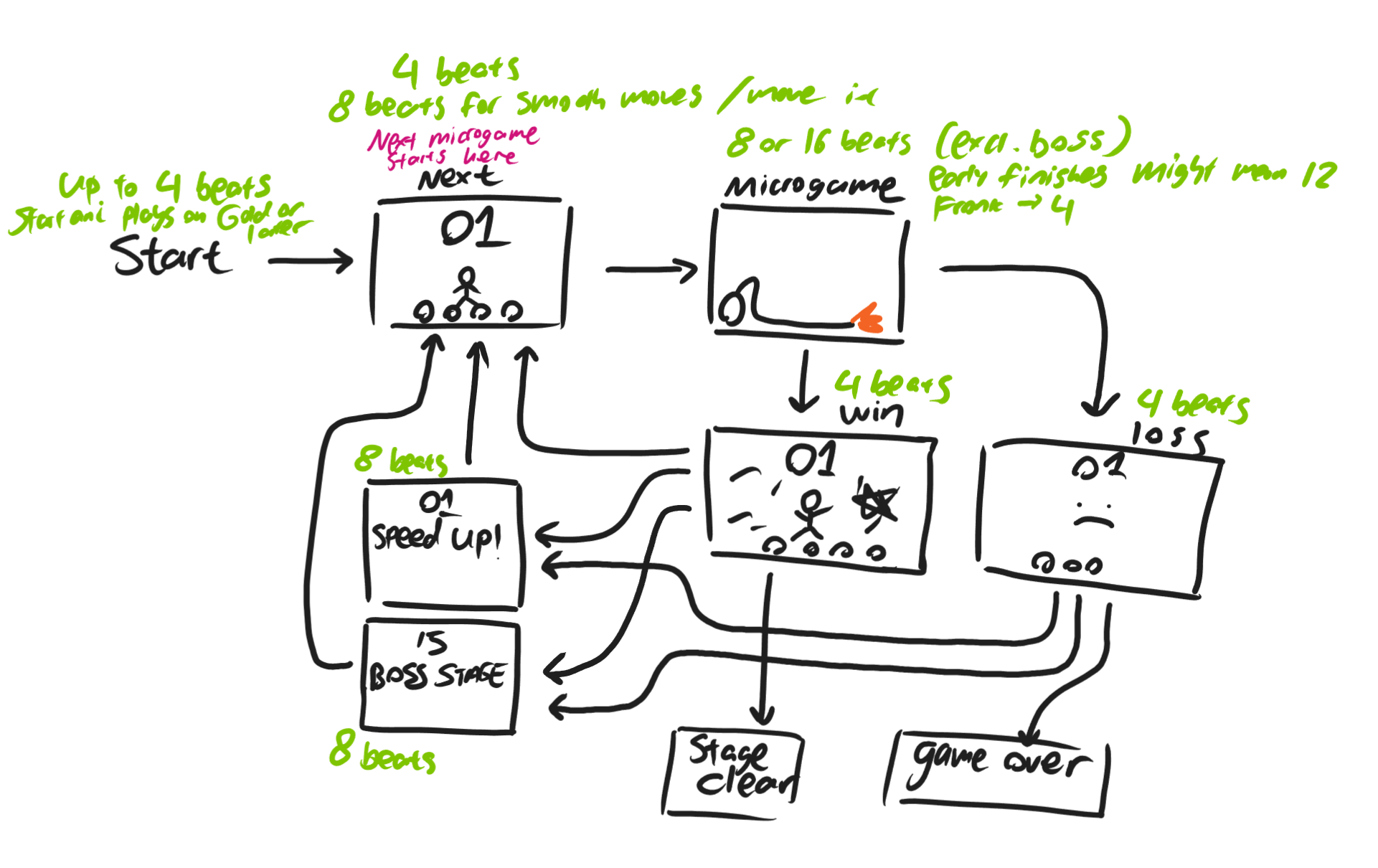
Okay, this diagram might be a bit too complicated, but here’s the idea, and intermissions are what we call anything that plays outside of a microgame (next stage, etc.):
- The stage plays a starting animation.
- The stage plays the intermission next animation and increments (increase by 1) the round counter. The counter increments in this phase, usually with a transition, where the counter expands, ticks up, and contracts back again. The counter always increments regardless of whether the previous microgame is a loss or not.
- In Twisted, the counter starts at 0 and ticks to 1 after the first microgame is beaten.
- In Smooth Moves, Gold, and Get It Together, the counter starts at 1. The animation still plays, but the counter stays at 1 for the first microgame.
- In Move it, the counter starts at 1 but does not animate at all for the first microgame.
- In my videos, I start the counter at 0 to emphasize its animation at the start, which most viewers are likely to see.
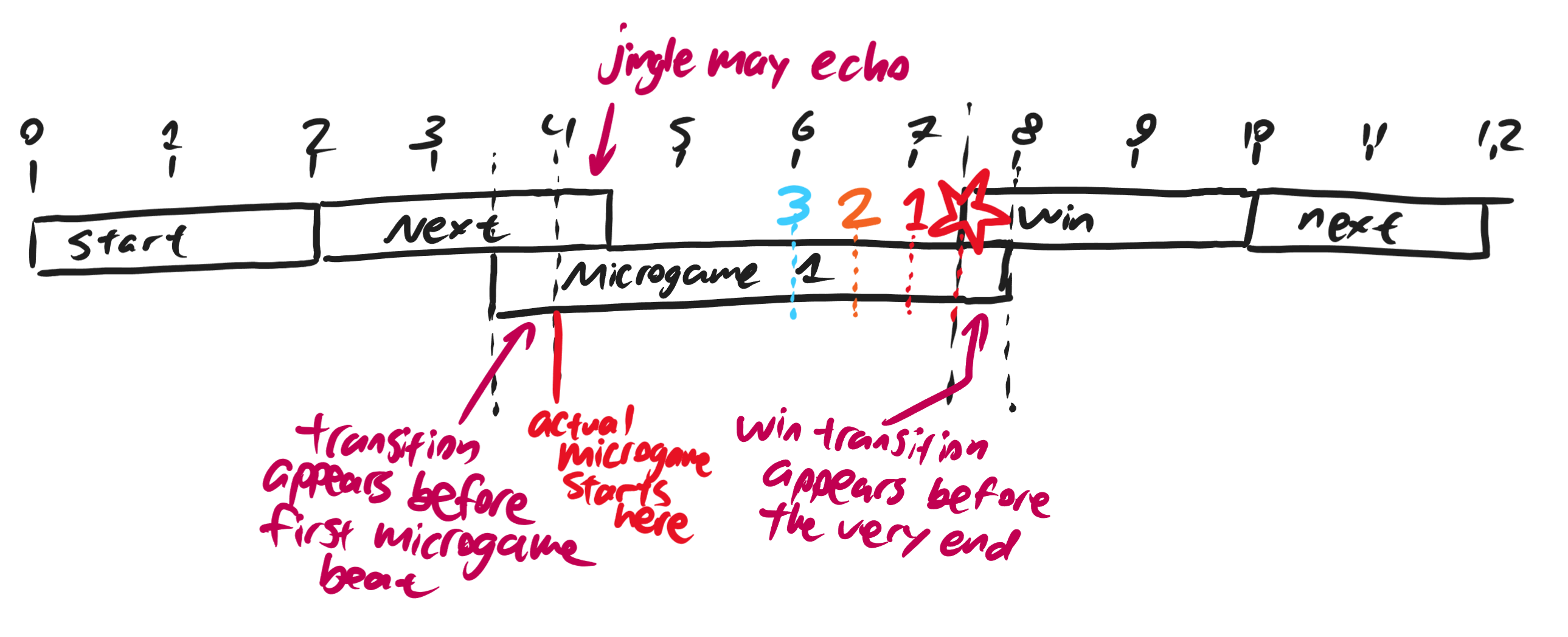
- At the last beat, the “NEXT” transitions to the microgame, displaying the task as a caption briefly at the center of the screen.
- The microgame plays, which can either be 8 or 16 beats by default, and with exceptions.
- Depending on what happens in the microgame, it may be considered a win (OK) or loss (FAIL). This determines the animation afterwards.
- The game’s state is still in the current microgame in the “win” or “loss” animation, hence the counter does not increment.
- There is a bomb on the bottom left of the screen. This denotes the timer. For the last 4 beats, the bomb displays “3”, “2”, “1”, then an explosion. When the bomb explodes, the game will have transitioned back to the win/lose animation by the next beat. DIY offsets this one second into the future, so please do not reference the bomb in Warioware DIY.
- Every few microgames, the game speeds up. This is displayed through a “SPEED UP” or “FASTER” splash text that appears on screen. Note that the microgame counter does not increment here.
- In Twisted and Smooth moves, the speed goes up after the “SPEED UP” segment.
- In Gold, Get it together, and Move it, the speed goes up when the “SPEED UP” segment starts.
- The last microgame of a stage, in most stages, is a boss stage. These are usually longer and are followed by “BOSS STAGE” text before.
- There are exceptions to this diagram. This diagram assumes first playthrough, in non-post game stages. In post-game, speed up displays are omitted and the stage immediately speeds up in the next microgame phase (you will notice this as the pitch changes). The most apparent case of this is in “Super hard”.
This seems like a super technical explanation for someone who has already gotten the feel for the game, but this is how I mentally associate how game stages progress and can be useful if someone wants to develop a fangame. The main takeaway: you are considered to be in the next microgame segment when the state transitions to “NEXT.”
Definitions
For the purpose of making videos like these, it’s important to know these music terms so I don’t have to define them over and over again:
- Tempo: how fast a song (or anything with rhythm) plays. Precisely measured in beats per minute, how many uniformly (identically) -spaced apart beats play in a minute. If it’s 60, then it’s one beat per second. If it’s 120, then it is two beats per second.
- Beat: treat it as a pulse. If you can clap along with a song in a way that makes the most sense, and they are evenly spaced apart, that is a beat. How quickly these beats go depends on the tempo you are clapping at.
Tempo Matching
If T is your tempo, the seconds per beat (or beat length) is calculated by 60/T. At 120 BPM, there are 0.5 seconds per beat. In your video editor, you’ll see that each second is marked. Since 0.5 seconds per beat fits nicely, use your timeline as a metronome. Everything should align naturally.
This means: don’t actually edit in the speed-ups until you are finished. If you are allowed to composite or make sub-sequences (nested sequences), use this to your advantage, and integrate the speed-ups afterwards.
When speeding up the video, know that the video should play at (actual tempo / 120) times speed. In After Effects, since you specify speed as a fraction of duration, you would take the reciprocal of this value.
Most Warioware bomb templates play at 120 BPM, including the one I made.
If you have microgame music, they should sync with the bomb, if done correctly, with this one caveat:
- Warioware Gold, Smooth Moves, and Move it all play at 120 BPM.
- Warioware Twisted default BPM is 138.00, if I remember it correctly. However, always double check the tempo using FL Studio.
- Warioware Inc. default BPM seems to fluctuate somewhere between 138 to 150, and this can change between stages. Double check to see. Knowing how to make mashups can help. I’m pretty sure Wario’s first stage plays at 138.70 BPM.
- Buster Jam Demo (2025)’s default BPM is 140.00 if you plan on using songs from there
- In Khinsider’s Warioware Get It Together collection, all microgame relevant songs play at 110 BPM.
When dealing with these irregularities, you must normalize them back to 120 BPM. Speed it back up again in post.
My process
This may be different when I started making videos for this series. The more videos I make for the same series, the harder it is, because clips get harder to find. From this point onwards, I usually find the clips I want to use first before sequencing them in my editor. I have them stored in an entire spreadsheet. Not needing to clip hunt while editing sped me up by a lot.
Designing the intermissions is also a challenge, as you really need to make sure things sync up. Intermissions are seen in many parts of the video, so make sure it looks good. This includes life bop animations, if any. Try to base it from the corresponding game - e.g. in Smooth Moves’ Wario’s first stage, the life icons usually do not bop and remain static, and appear on the top, rather than the bottom. Just pay attention to your source material, making deviations if you need to.
Remember: “wins” should look joyful, but the “next” animation should be mostly independent of whether the previous microgame was a win or not.
This is how my editor sequence looks like. Notice how everything is aligned to the seconds of the timeline. The microgame being depicted lasts for 8 beats.
My conventions for making Warioware Parodies
- Understand the 12 principles of animation.
- Light travels faster than sound. If an action has an associated sound cue, including tempo bops, I have the action play out typically 5 frames (in a 60FPS video) earlier than the sound cue. Most animations usually do this.
- I usually aim for at least 10 stages but now use a minimum of 13, for the purposes of pacing and feasibility.
- I put three speed-ups, meaning there are four tempo phases: default speed, faster, faster-er, and fastest, if expressed qualitatively. I try to evenly distribute these speed-ups, although you can base the speed-ups in the games, even though a typical warioware stage only does two speed ups. Precisely, the tempo sequence I use is:
- 120 (start)
- 140
- 160
- 180 (fastest)
- In many Warioware games, the tempo sequence is usually 120, 140, then 150 or 160, which can depend (In Move it, when looking closely, Cricket’s stage is at 150 BPM after the 2nd speed up, but the last Wario stage is at 160 BPM after the 2nd speed up)
- When time-stretching to tempo-fit, make sure pitch is affected. Keep this in mind if you’re using Sony Vegas.
- Warioware games do this thing where they try to ensure semitone changes are at a whole number in most gamemodes. However, even though speeding up audio by 2x pitches it up by an octave, anywhere between that, this relationship is not linear. So instead, the game manipulates both the speed and pitch as independent variables and associate +20BPM with an increase in 2 semitones, and cap the semitone increase at 12 (one octave). This is why you don’t notice the pitch going up at a certain speed level. For PETERWARE 7, for the intermission jingles only, I used this approach. For all else, I just let the time stretcher do its thing.
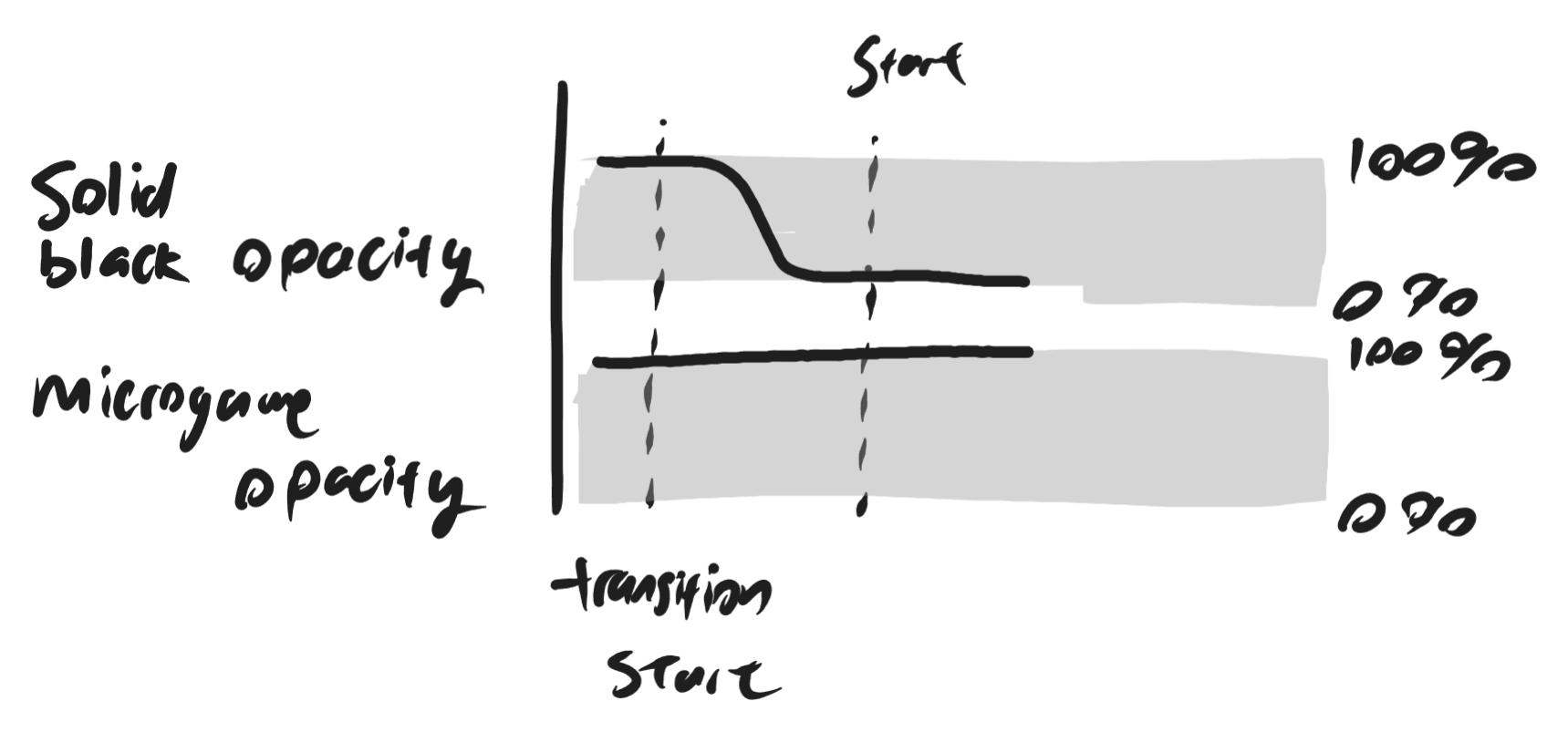
It is important to notice that if you slow Warioware gameplay, there is solid black in front of the microgame player that fades out during the transition and back in. Slow down footage of Smooth Moves.
Appendix
Speed to semitone change
Without pitch or time preservation, if you were to adjust the pitch of something in semitones (a half note, i.e. diff between C and C#), you can calculate the speed change (in ratio from 1) using this formula: speed = 2^(semitone change / 12). If you wanted to manipulate semitones given a speed knob, then you’ll have to rearrange: semitone change = 12*log2(speed), where speed is in ratio from 1. You can paste this into your search bar if you need to, especially if you don’t understand what log2 means.